
SageCRM insights - Advanced Screen Customisations
Nick Rainbird • June 8, 2020
Welcome to this weeks SageCRM-Insights article where we will be showing you four examples of how you can extend SageCRM to easily customise the appearance of CRM fields, screens and lists to suit the way you and your team work.
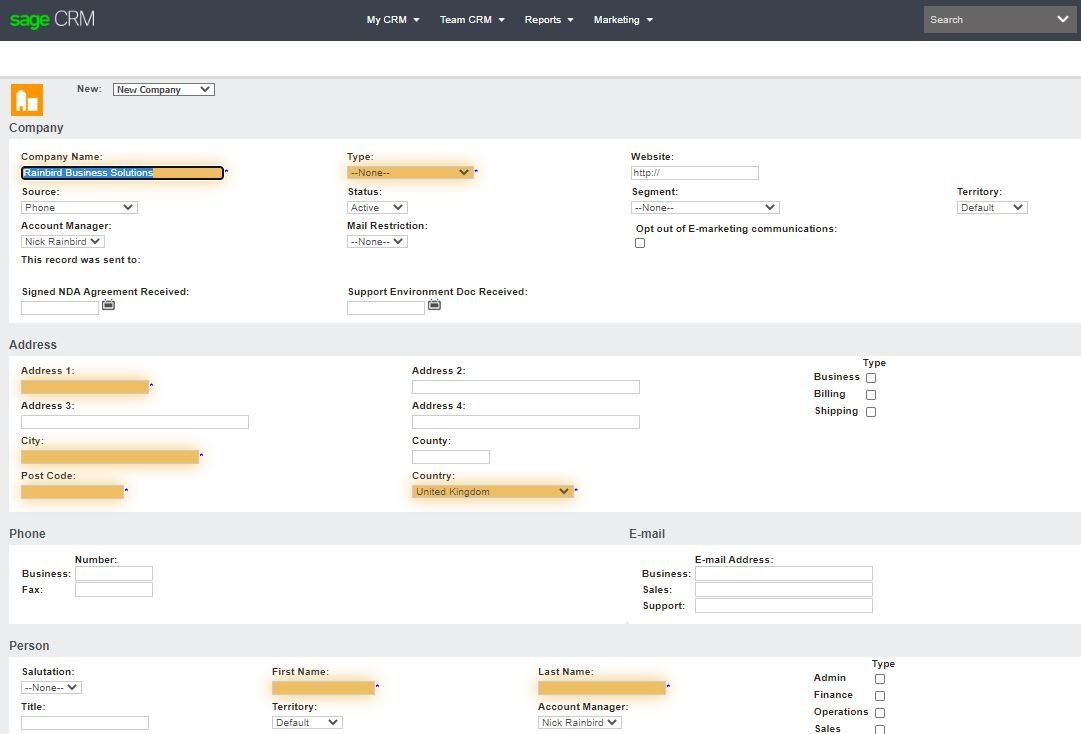
Highlighting of Required Fields
When a field is set to required (must be populated) on a screen, SageCRM identifies the required fields by putting an asterix * value at the end of the field by default. If you forget to fill in a required field a validation message will appear informing you not all required fields have been populated and will put a Red
arrow next to that field highlighting the required fields that have not been populated.
To make it easier for users to identify the required fields on the screen from the offset you can utilise the mark required fields function where you can specify a background colour to highlight the required fields as shown in the below example so they are more visible from the start on the entry screen.
Phone and Email Required Field Validation on Company and Person Screens
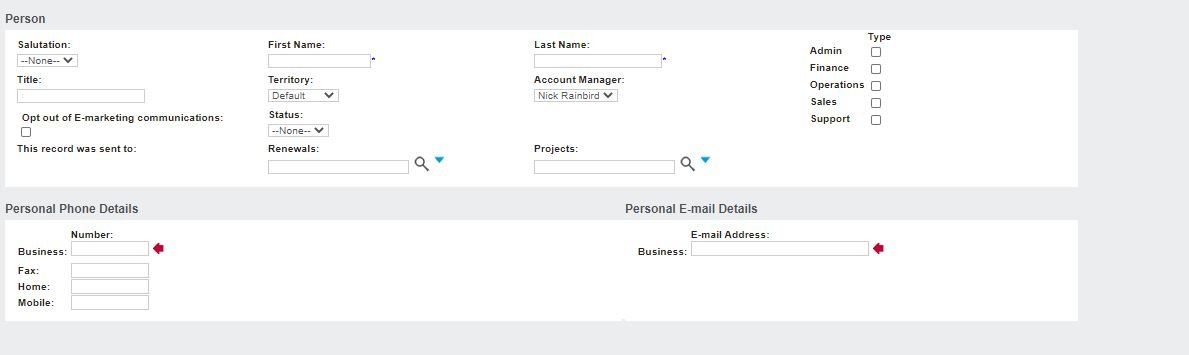
When configuring a new or existing customer SageCRM solution a very common requirement is to make the phone and email fields set to required so this information can be requested and captured on entry as a minimum requirement. The phone and email fields do not work like other standard fields in SageCRM so you can not currently set these fields to be required at the field level. Thanks to a very talented developer we can now share with you a validation feature which provides this functionality so these fields can now easily be set to required on entry.
Changing the default colour for user appointments in the Team CRM Calendar
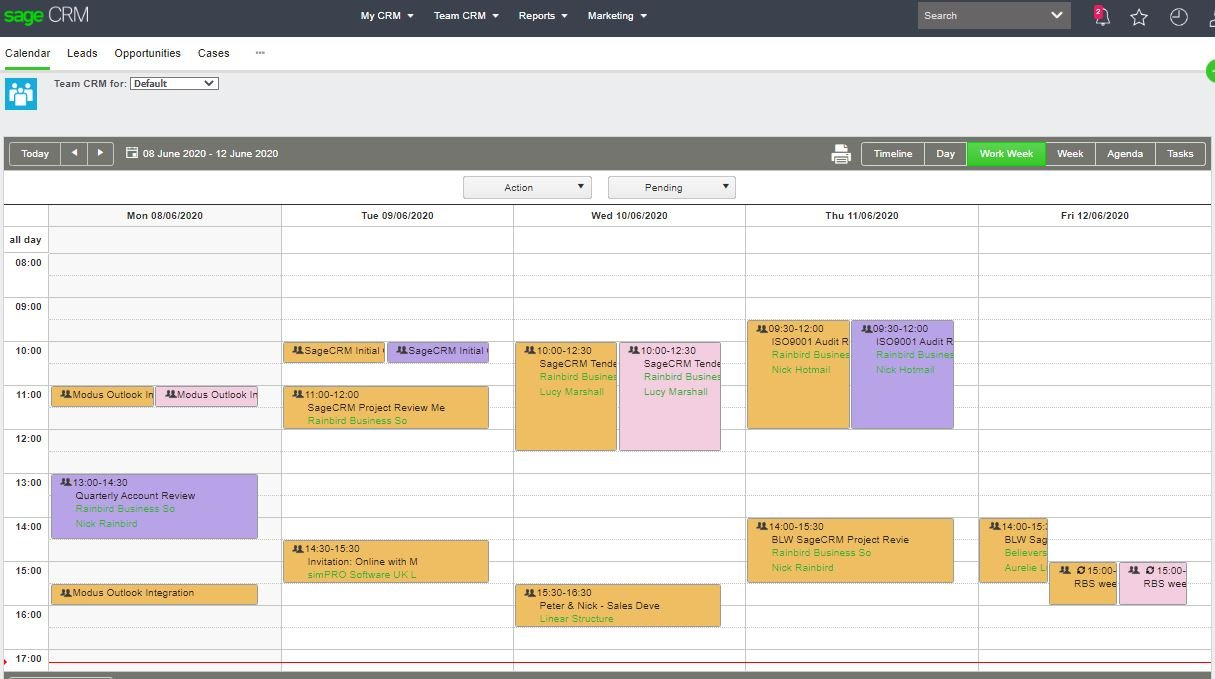
Team CRM mode allows you to work with tasks and appointments assigned to teams. To open the calendar in this mode, in the main menu, click Team CRM > Calendar. This can be sometime difficult to identify which appointments are for which sales person so this customisation provides you the scope to change the default colours in which appointments assigned to a particular user are displayed in the Team CRM calendar so they are more easily identifiable.
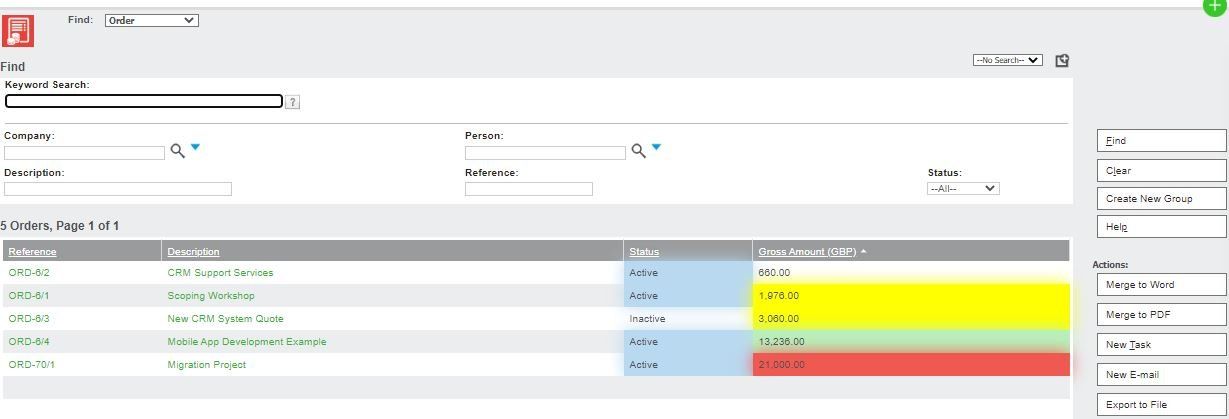
SageCRM provides you the ability to highlight different parts of the grid and fields returned in a list of results based on a criteria set to make information easier to identify and stand out.
This example shows how field highlighting has been added to a list of orders returned from a search. The relevant highlight colour is applied to the Gross Amount field depending on the Gross Amount value being over certain values thresholds specified below:
- If the Gross Amount value is greater than £1,000 then display the value in Yellow,
- If the Gross Amount value is greater than £10,000 then display the value in Green
- finally if the Gross Amount value is greater than £20,000 highlight this in Red
We are also highlighting the Status field in this example as blue where the status ='Active'
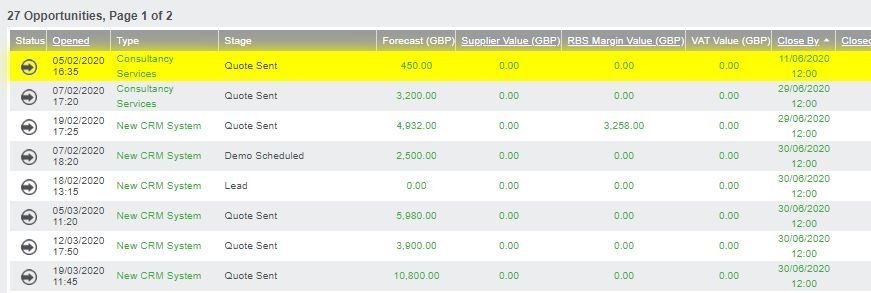
Hopefully you can see from the above examples how you can extend SageCRM to easily customise the appearance of CRM fields, screens and lists to suit the way you and your users work.
If you would like to find out more or can see the benefits of applying one or all of the above customisations to your SageCRM please feel free to get in touch on 01494 490409
or email the me at nick@rainbirdbusiness-solutions.com
to discuss these further.
Until the next SageCRM Insights instalment keep safe and we will continue to help you unlock your success with SageCRM!
Nick
Rainbird Business Solutions
Stay Connected with ERBS
Read our latest updates
Enquire now
Get in touch

AI is good, Human judgment is better Everywhere you look, AI is being positioned as the solution to every CRM challenge. AI will transform sales. AI will revolutionise customer service. AI will eliminate administration. AI will predict your next customer opportunity before you even know it exists. AI can draft the email. But should that email be sent? In CRM, this is where human judgement matters. AI is a powerful assistant for the time-consuming / repetitive tasks that take up the working day: condensing meeting notes, drafting customer communications, identifying patterns and helping teams prioritise leads. That gives people more time to focus on the customer. It does not make their expertise less important. Where human judgement wins: A CRM system can suggest the next best action, but it cannot fully understand the complexities of a customer relationship built over years A salesperson might hear hesitation in a buyer’s voice that never appears in the Ai transcript A support team might know that a routine complaint follows weeks of frustration. The suggested response may look right on screen, but still be wrong for that relationship. Building trust, negotiating a difficult deal and deciding when to make an exception require context, empathy and accountability. AI can offer information; people still need to decide what to do with it. While AI widens the map, humans lay out the path. The strongest approach combines both: let AI handle the first draft and the repetitive work, then use human judgement to check the details, shape the response and make the final decision. Start with one time-consuming task, and ask your team what better customer conversations that saved time could make possible. The businesses seeing the greatest success with AI are not removing people from the process. They are empowering people with better information.
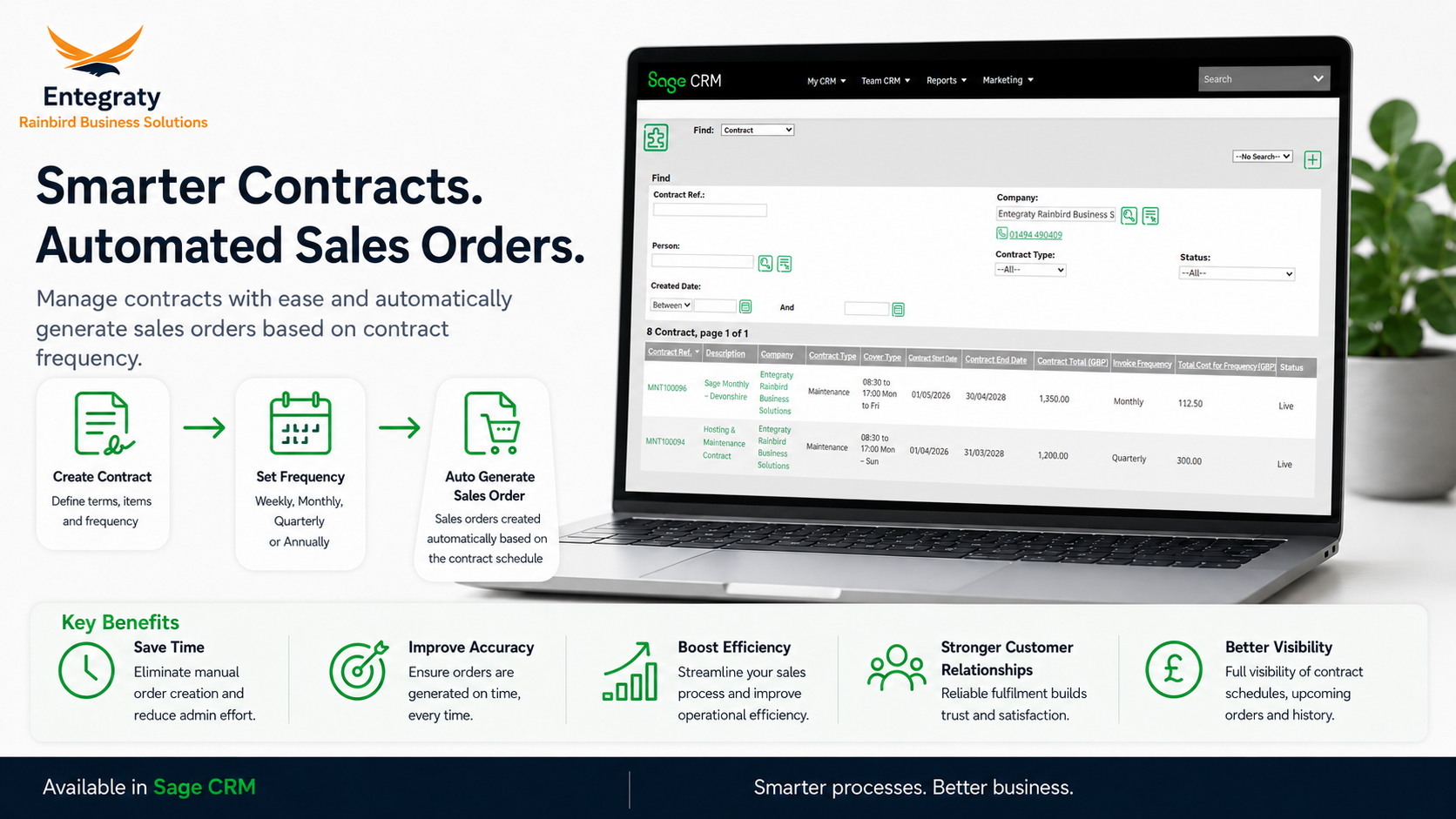
ERBS's Contracts module for SageCRM allows businesses to easily create and manage contracts, renewals and automatically generate sales orders based on the contract billing frequency, helping teams streamline operations, reduce manual effort, and improve billing accuracy. Fully integrated with Sage50 and Sage200 the auto generated sales orders can then be posted from SageCRM directly at a click of a button. Key Features: Contracts can be created directly from sales quotations or orders Supports multiple and custom billing frequencies (4 weekly, monthly, quarterly, annually) Contract and Product level Site management Process contract amendments midterm tracking historic changes and authorisations if required Easy Management of Annual Price Increases at product level Renewal and purchase order reminders and dashboards On Hold and Cancellation processes By connecting contracts directly to automated sales order generation, businesses can create a more reliable and scalable process for recurring business that help teams work smarter, improve visibility, and accelerate growth If you would like to find out more about the Contracts module for SageCRM please feel free to get in touch on 01494 490409 or email me at nick@rainbirdbusiness-solutions.com to discuss these further.
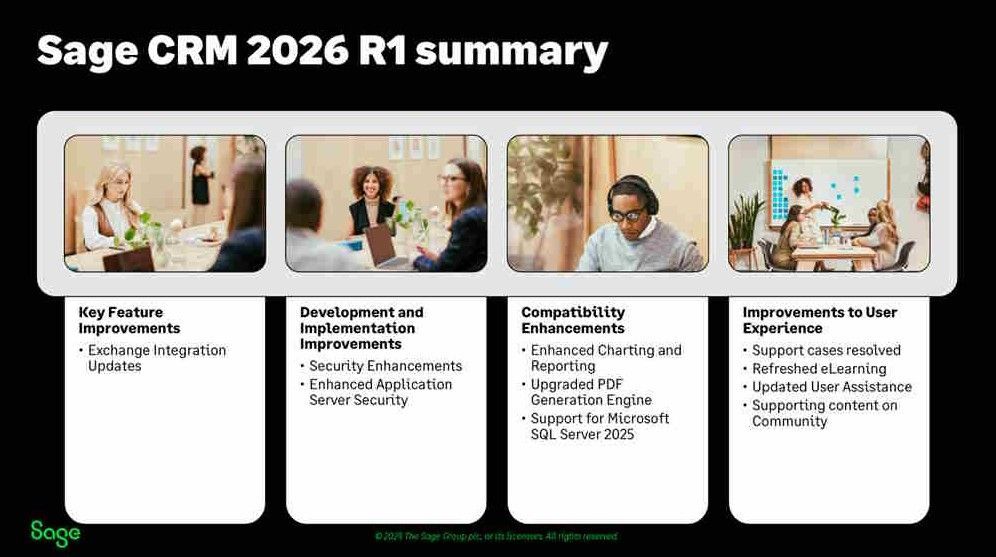
SageCRM 2026 R1 is positioned as a Security and Compatibility release, focused on reinforcing the platform’s resilience, reliability, future readiness and long-term sustainability.